
e-Signing a form
What Happens When You e-Sign a Form
1. Click on the Click Here to Sign Document(s) button in the email you received (or click on the Direct Sign Now button on the Signature Status page).
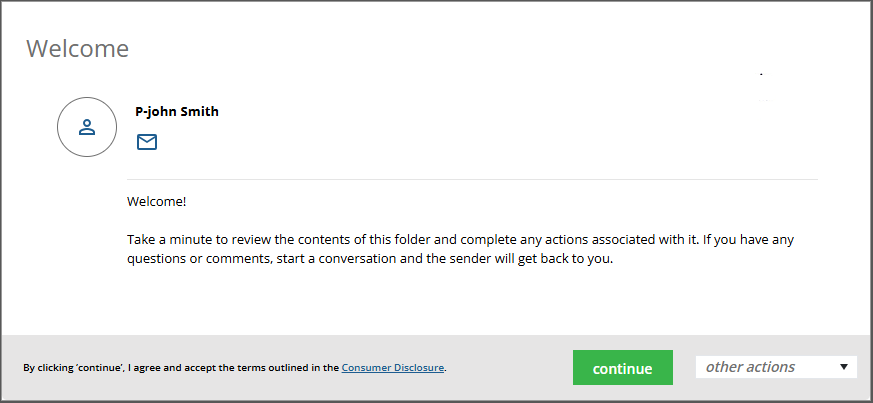
2. You will get a Welcome dialog. Click the continue button.
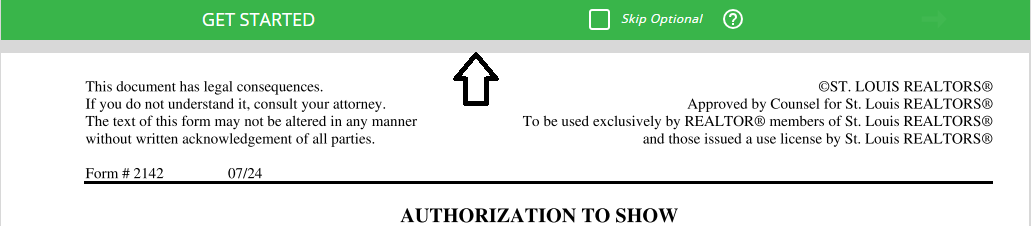
3. The form will appear on the screen. At the top will be a green bar. Click on the Get Started button on the bar. It will take you to the first place to initial or sign.


4. Signature locations will have a blue arrow on the left that says "Sign". For initial locations, it will say "Initial".
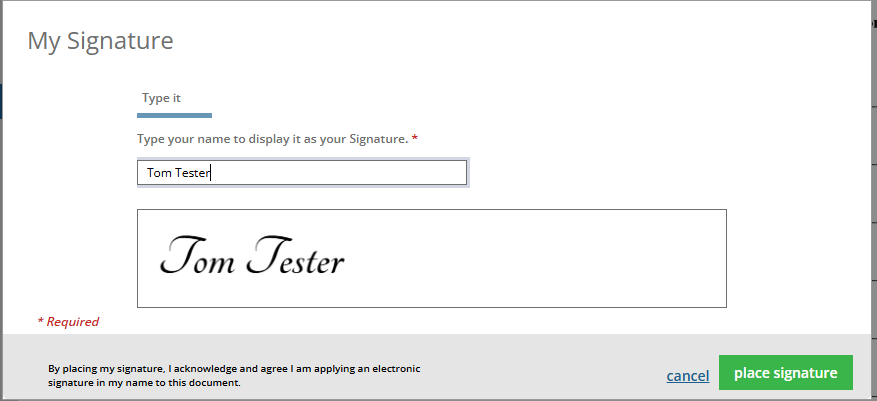
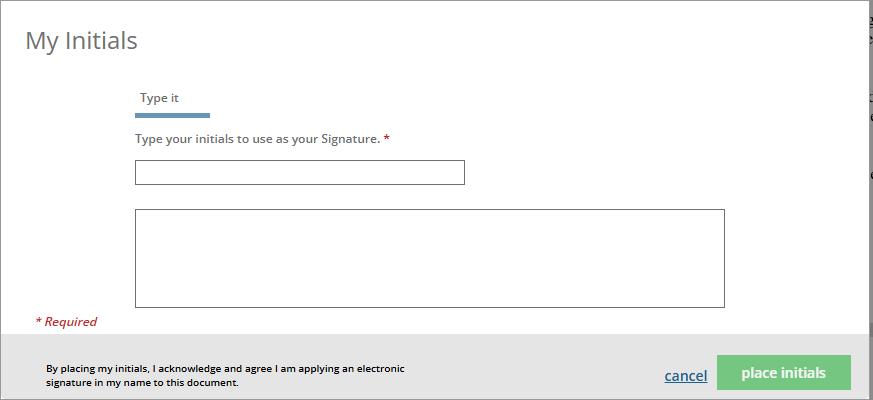
5. Click on the first signature or initial location. A dialog box will appear titled My Signature (or My Initials). Type in your name (or initials) in the top field. In the bottom field you will see what the signature (or initials) will look like on the form. When you are satisfied, click on the place signature (or place initials) button. Your signature (or initials) will appear on the form.
NOTE: Once you have set up your signature or initials, you will not have to enter it again. Any additional signatures or initials will be created by clicking on signature or initial location.

6. The blue arrow on the left will change to say "Next". Click on this to go to the next place you need to sign or initial.

7. Once you have entered all the required signatures or initials, a green bar will appear on the bottom. Click on the Finish button to submit your signatures electronically.
Multiple Documents
If there are multiple documents in the transactions:
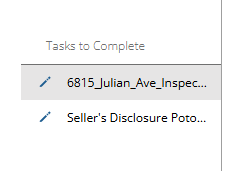
1. There will be a list of documents on the left listing all the documents in the transaction. Click on a document name will bring that document to the fore.

2. Once the first document has been completed, the green bar on the bottom will say Next Transaction. Clicking on it will bring up the next document on the list to be signed/initialed.
3. Only after all the documents have been signed will the Finished bar appear.
View All FAQ's in the Related Category:



